
Nesta página, descrevemos como fazer uma captura de tela de uma instância de máquina virtual (VM, na sigla em inglês) usando a ferramenta de captura de tela da VM.
Fazer uma captura de tela de uma VM pode ajudar a resolver problemas de uma VM que não está acessível. Por exemplo, uma VM pode não estar acessível se estiver inicializando ou com uma imagem de disco corrompida.
Sistemas operacionais baseados no Windows
As capturas de tela da VM ajudam a resolver problemas nas conexões RDP com VMs do Windows, identificando se a instância foi iniciada com sucesso. Para mais informações sobre como solucionar problemas de conexão RDP, consulte Como solucionar problemas do RDP.
Considerações sobre privacidade com clientes da área de trabalho remota
A ferramenta de captura de tela da VM usa o adaptador de exibição da VM para realizar uma captura de tela da sessão do console local por meio de um cliente da área de trabalho remota. Uma captura de tela por meio da sessão do console local pode registrar informações confidenciais da área de trabalho ou do navegador do usuário.
Se você estiver preocupado com a exposição de informações confidenciais pela captura de tela, configure o cliente da área de trabalho remota da seguinte maneira para que ela não use a sessão do console local:
Área de trabalho remota do Google Chrome: se você estiver usando essa área, ative o Modo cortina para que ela não se conecte à sessão do console local.
Microsoft RDP: os clientes RDP se conectam usando os serviços da área de trabalho remota do Windows (RDS, na sigla em inglês). O Windows RDS permite que clientes RDP escolham se querem iniciar uma nova sessão de console ou se querem se conectar a uma já existente. Por isso, poderá haver implicações de privacidade. Para ver informações sobre como personalizar o RDS para que ele não se conecte à sessão do console local, consulte Configurações do arquivo RDP com suporte da Área de Trabalho Remota.
Antes de compartilhar capturas de tela com o Suporte do Google, veja se elas não contêm informações confidenciais.
Antes de começar
- Ative as telas virtuais na VM.
-
Configure a autenticação, caso ainda não tenha feito isso.
A autenticação verifica sua identidade para acesso a serviços e APIs do Google Cloud . Para executar
códigos ou amostras de um ambiente de desenvolvimento local, autentique-se no
Compute Engine selecionando uma das seguintes opções:
Select the tab for how you plan to use the samples on this page:
Console
When you use the Google Cloud console to access Google Cloud services and APIs, you don't need to set up authentication.
gcloud
-
Instale a CLI do Google Cloud. Após a instalação, inicialize a CLI do Google Cloud executando o seguinte comando:
gcloud initAo usar um provedor de identidade (IdP) externo, primeiro faça login na gcloud CLI com sua identidade federada.
- Set a default region and zone.
REST
Para usar as amostras da API REST nesta página em um ambiente de desenvolvimento local, use as credenciais fornecidas para a CLI gcloud.
Instale a CLI do Google Cloud. Após a instalação, inicialize a CLI do Google Cloud executando o seguinte comando:
gcloud initAo usar um provedor de identidade (IdP) externo, primeiro faça login na gcloud CLI com sua identidade federada.
Para mais informações, consulte Autenticar para usar REST na documentação de autenticação do Google Cloud .
Limitações
A instância precisa estar no estado do ciclo de vida
RUNNING.A taxa máxima de capturas de tela por segundo é 20, que é o limite de taxa da API.
Não é possível iniciar a captura de tela enquanto houver uma já em andamento.
É possível realizar somente uma captura de tela por vez.
Como realizar uma captura de tela de uma VM
Use os procedimentos a seguir para realizar a captura de tela de uma VM.
Console
No console do Google Cloud , acesse a página Instâncias de VM.
Na página Instâncias de VM, clique no nome da instância da qual você quer realizar uma captura de tela.
Na página Detalhes da instância de VM, clique na guia Captura de tela.
Clique em Atualizar para gerar uma captura de tela da VM. Se você não ativou uma exibição virtual, o consoleGoogle Cloud não mostra uma captura de tela.
gcloud
Faça uma captura de tela de uma VM usando o comando
gcloud compute instances get-screenshot:gcloud compute instances get-screenshot VM_NAME \ --destination=JPEG_FILENAME \ --zone=ZONE
Substitua:
VM_NAME: nome da VM para realizar uma captura de tela.JPEG_FILENAME: nome de arquivo opcional do jpeg para a saída da captura de tela. Se você não especificar um nome de arquivo, os dados jpeg brutos serão enviados para a saída padrão (stdout).ZONE: zona da VM para realizar uma captura de tela.
REST
Com a API Compute Engine, faça uma captura de tela de uma VM usando a solicitação
instances.getScreenshot:GET https://compute.googleapis.com/compute/v1/projects/PROJECT/zo nes/ZONE/instances/VM_NAME/screenshot
Substitua:
PROJECT: ID do projeto que contém a VM para realizar uma captura de tela.ZONE: zona que contém o projeto.VM_NAME: nome da VM para realizar uma captura de tela.
Capturas de tela de VM exemplo
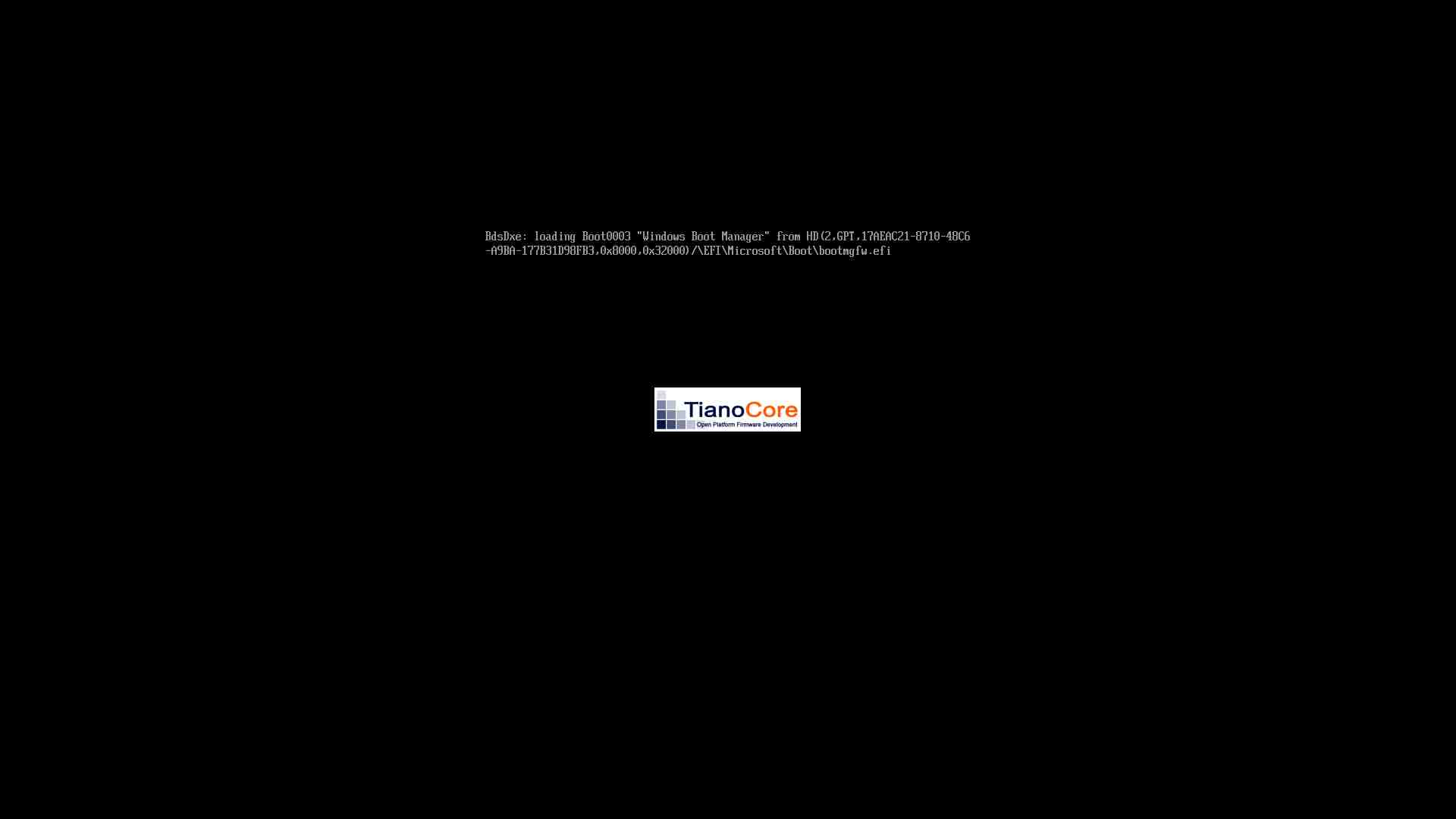
O UEFI do Compute Engine que carrega o gerenciador de inicialização
A captura de tela a seguir mostra uma VM do Windows Server que está indisponível enquanto o gerenciador de inicialização está sendo carregado:
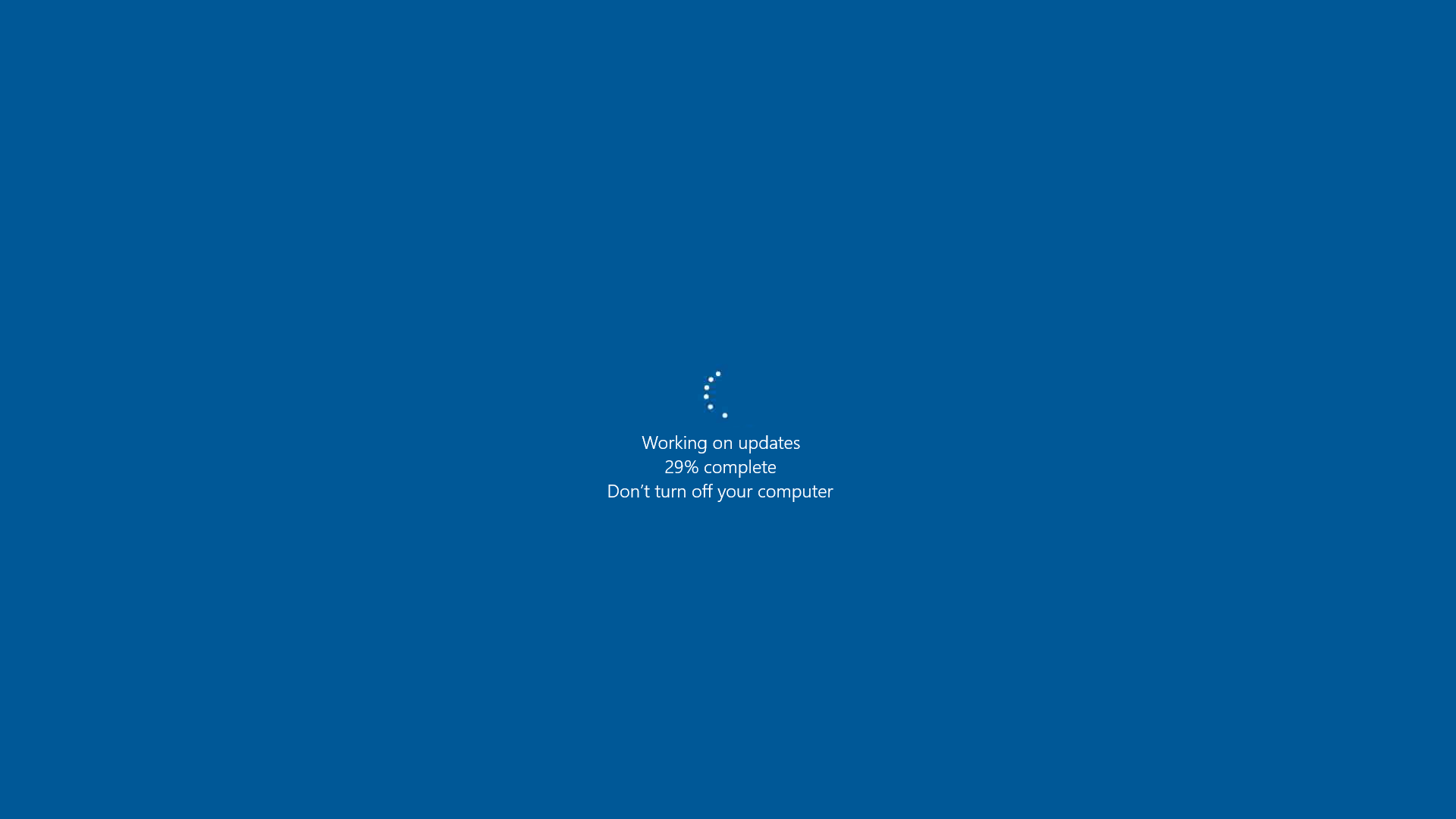
Atualizações do Datacenter do Windows Server 2016
A captura de tela a seguir mostra uma VM do Windows Server 2016 que está indisponível ao concluir as atualizações:
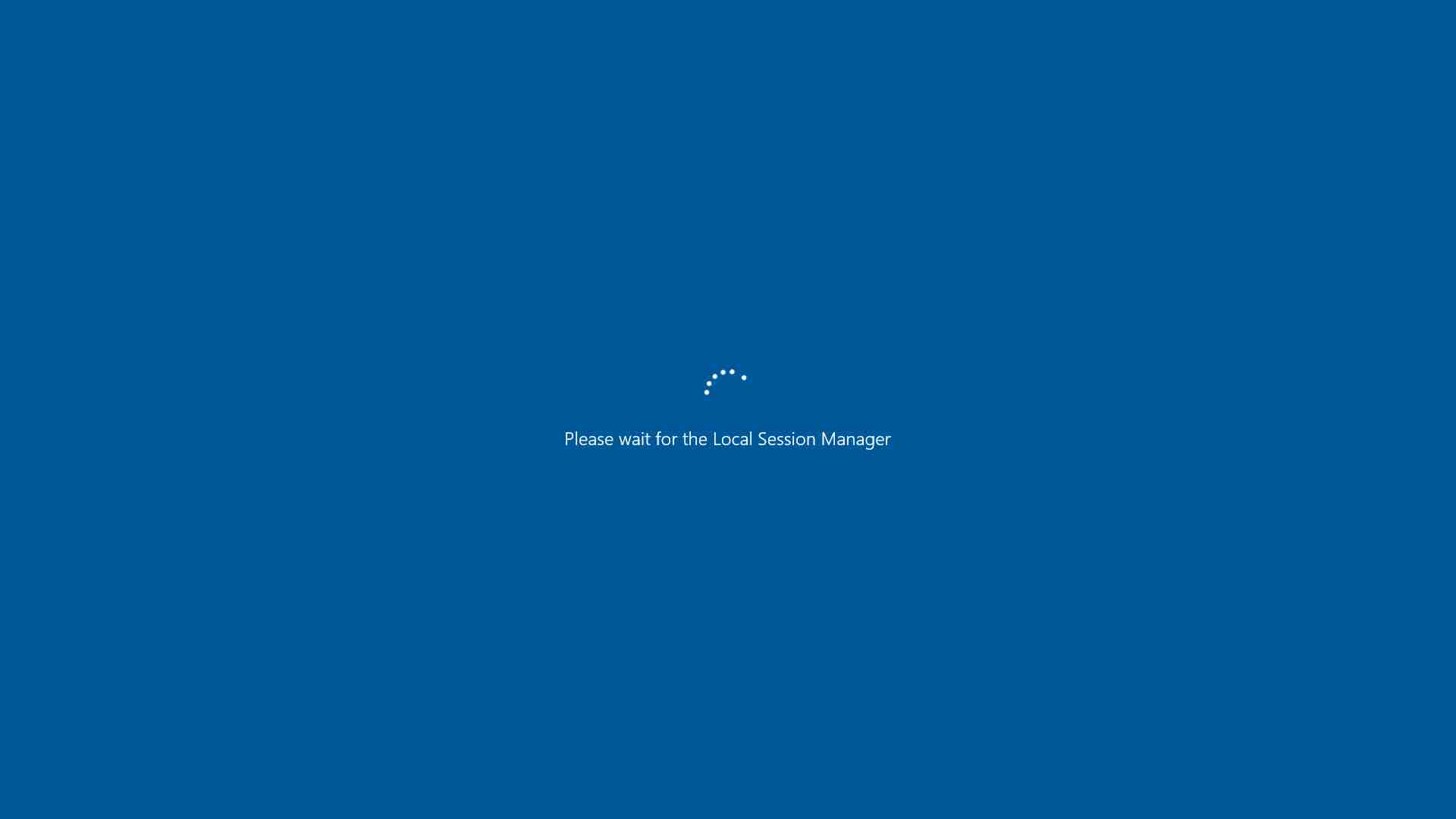
Serviços de sistema de carregamento do Windows Server 2016
A captura de tela a seguir mostra uma VM do Windows Server 2016 que está indisponível durante o carregamento de serviços do sistema:
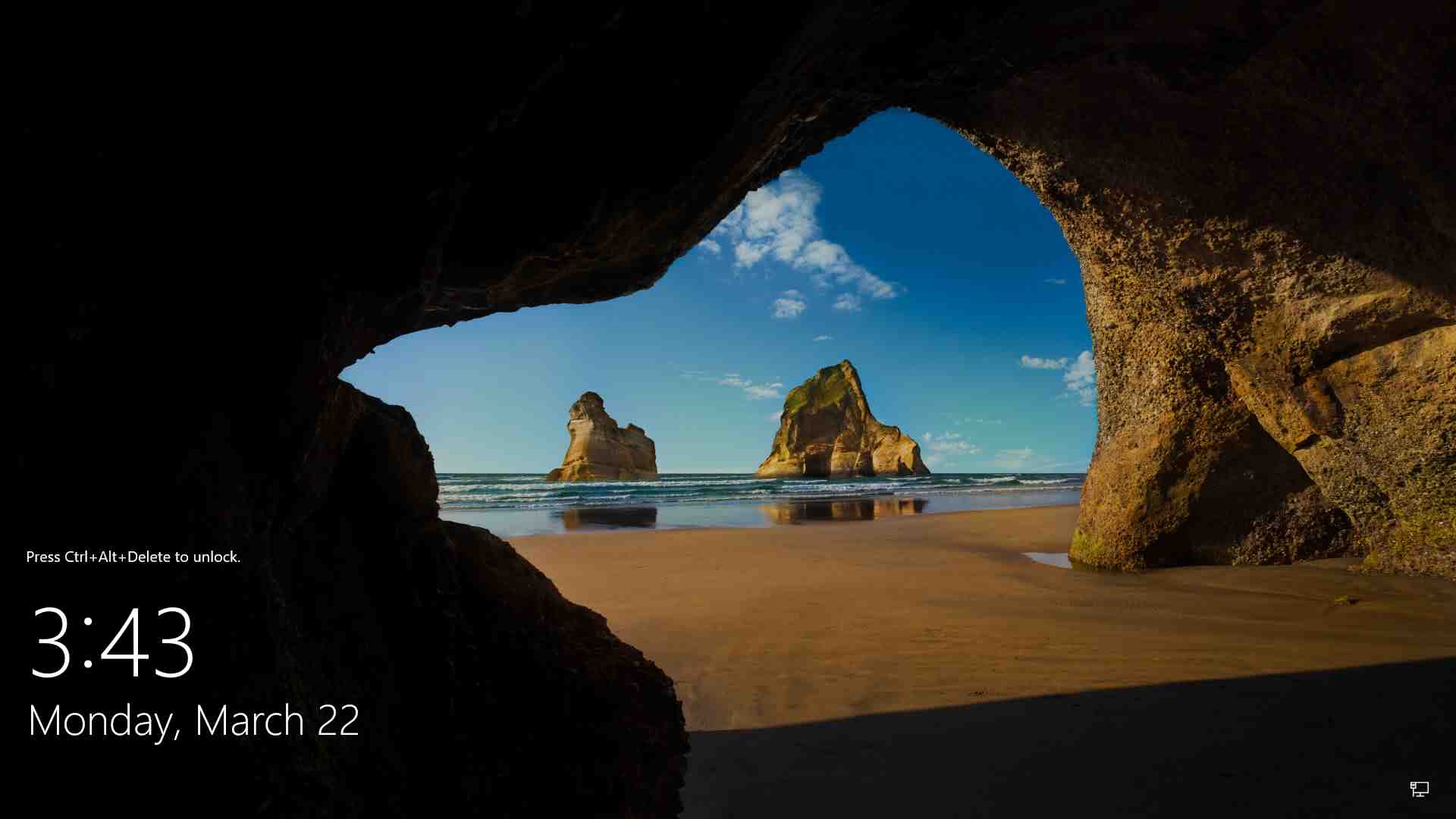
Tela de login do Windows Server 2016 Datacenter
A captura de tela a seguir mostra uma VM do Windows Server 2016 que concluiu a inicialização e está pronta para fazer login:
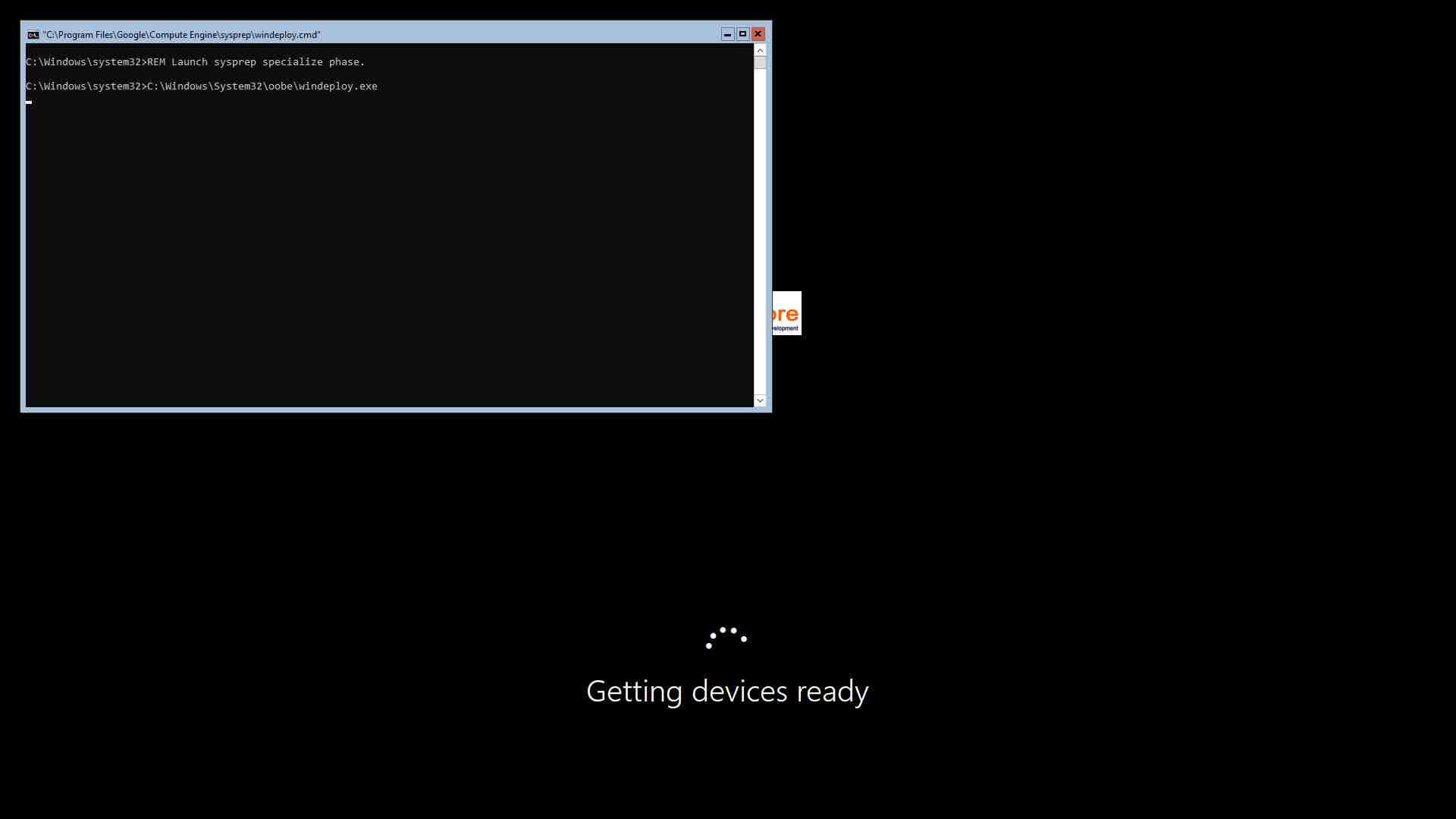
Processo sysprep do Windows Server 2019 Core
A captura de tela a seguir mostra o processo sysprep de uma instância de VM do Windows Server 2019 Core:
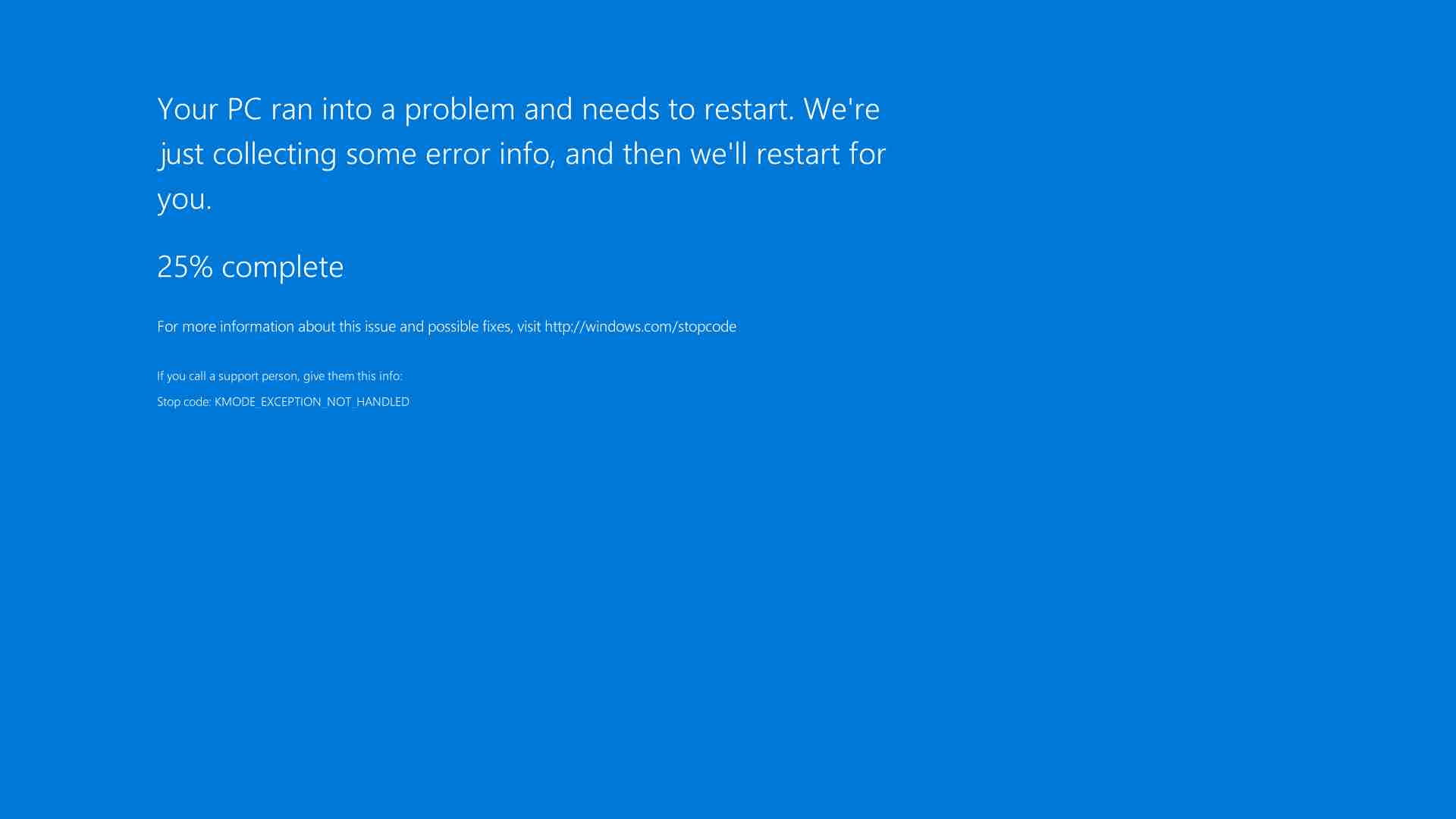
Erro de tela azul do Windows Server 2016 Datacenter
A captura de tela a seguir mostra um erro de tela azul de uma instância de VM do Windows Server 2016 Datacenter:
A seguir
Saiba como coletar informações de diagnóstico de uma VM.
Saiba como resolver problemas de instâncias do Windows.
Exceto em caso de indicação contrária, o conteúdo desta página é licenciado de acordo com a Licença de atribuição 4.0 do Creative Commons, e as amostras de código são licenciadas de acordo com a Licença Apache 2.0. Para mais detalhes, consulte as políticas do site do Google Developers. Java é uma marca registrada da Oracle e/ou afiliadas.
Última atualização 2025-09-08 UTC.
[[["Fácil de entender","easyToUnderstand","thumb-up"],["Meu problema foi resolvido","solvedMyProblem","thumb-up"],["Outro","otherUp","thumb-up"]],[["Difícil de entender","hardToUnderstand","thumb-down"],["Informações incorretas ou exemplo de código","incorrectInformationOrSampleCode","thumb-down"],["Não contém as informações/amostras de que eu preciso","missingTheInformationSamplesINeed","thumb-down"],["Problema na tradução","translationIssue","thumb-down"],["Outro","otherDown","thumb-down"]],["Última atualização 2025-09-08 UTC."],[[["\u003cp\u003eThis page provides instructions on how to use the VM screenshot tool to capture screenshots from virtual machine (VM) instances, which can be helpful for troubleshooting inaccessible VMs or failed RDP connections.\u003c/p\u003e\n"],["\u003cp\u003eThe VM screenshot tool captures the local console session through a remote desktop client, potentially exposing sensitive information, so users should configure their remote desktop client (like Chrome Remote Desktop or Microsoft RDP) to avoid using the local console session.\u003c/p\u003e\n"],["\u003cp\u003eTo take a screenshot, the VM must be in the \u003ccode\u003eRUNNING\u003c/code\u003e state, the maximum capture rate is 20 screenshots per second, and only one screenshot can be captured at a time, with the process requiring specific permissions.\u003c/p\u003e\n"],["\u003cp\u003eUsers can capture a screenshot through the Google Cloud console, using the \u003ccode\u003egcloud compute instances get-screenshot\u003c/code\u003e command, or by making a \u003ccode\u003einstances.getScreenshot\u003c/code\u003e request through the Compute Engine API.\u003c/p\u003e\n"],["\u003cp\u003eBefore sharing screenshots, users are encouraged to check them for sensitive data, and are also provided with links to more information regarding diagnostics and troubleshooting.\u003c/p\u003e\n"]]],[],null,["# Capturing VM screenshots\n\nLinux Windows\n\n*** ** * ** ***\n\nThis page describes how to capture a screenshot from a virtual machine (VM)\ninstance by using the VM screenshot tool.\n\nCapturing a screenshot from a VM can help you troubleshoot a VM that is not\notherwise accessible. For example, a VM might not be accessible if it is booting\nor has a disk image that is corrupted.\n\nWindows-based operating systems\n-------------------------------\n\nVM screenshots can help to troubleshoot failed RDP connections to Windows VMs,\nby identifying if the instance has started successfully. For information about\ntroubleshooting RDP connections, see [Troubleshooting\nRDP](/compute/docs/troubleshooting/troubleshooting-rdp#vm-screenshot).\n\nPrivacy considerations with remote desktop clients\n--------------------------------------------------\n\nThe VM screenshot tool uses the display adapter of the VM to capture a\nscreenshot of the local console session through a remote desktop client.\nCapturing a screenshot through the local console session might capture sensitive\ninformation from the user's desktop or browser.\n\nIf you are concerned about exposing sensitive information as part of a\nscreenshot, configure your respective remote desktop client in the following way\nso that it does not use the local console session:\n\n- [Chrome Remote Desktop](https://remotedesktop.google.com/): If you are using\n Chrome Remote Desktop, be sure to enable [Curtain\n mode](https://support.google.com/chrome/a/answer/2799701) so that it does\n not connect to the local console session.\n\n- [Microsoft RDP](https://docs.microsoft.com/en-us/windows-server/remote/remote-desktop-services/clients/remote-desktop-clients):\n RDP clients connect by using [Windows Remote Desktop Services\n (RDS)](https://docs.microsoft.com/en-us/windows-server/remote/remote-desktop-services/welcome-to-rds). Windows RDS lets RDP clients choose whether to start a new\n console session or connect to the existing one, and because of this, there might\n be privacy implications. For information about customizing RDS so that it does\n not connect to the local console session, see [Supported Remote Desktop RDP file\n settings](https://docs.microsoft.com/en-us/windows-server/remote/remote-desktop-services/clients/rdp-files).\n\nBefore sharing screenshots with [Google\nSupport](https://cloud.google.com/support-hub), make sure to review them for\nsensitive information.\n\nBefore you begin\n----------------\n\n- [Enable virtual displays on your VM](/compute/docs/instances/enable-instance-virtual-display).\n- If you haven't already, set up [authentication](/compute/docs/authentication). Authentication verifies your identity for access to Google Cloud services and APIs. To run code or samples from a local development environment, you can authenticate to Compute Engine by selecting one of the following options:\n\n Select the tab for how you plan to use the samples on this page: \n\n ### Console\n\n\n When you use the Google Cloud console to access Google Cloud services and\n APIs, you don't need to set up authentication.\n\n ### gcloud\n\n 1.\n [Install](/sdk/docs/install) the Google Cloud CLI.\n\n After installation,\n [initialize](/sdk/docs/initializing) the Google Cloud CLI by running the following command:\n\n ```bash\n gcloud init\n ```\n\n\n If you're using an external identity provider (IdP), you must first\n [sign in to the gcloud CLI with your federated identity](/iam/docs/workforce-log-in-gcloud).\n | **Note:** If you installed the gcloud CLI previously, make sure you have the latest version by running `gcloud components update`.\n 2. [Set a default region and zone](/compute/docs/gcloud-compute#set_default_zone_and_region_in_your_local_client).\n\n ### REST\n\n\n To use the REST API samples on this page in a local development environment, you use the\n credentials you provide to the gcloud CLI.\n 1. [Install](/sdk/docs/install) the Google Cloud CLI. After installation, [initialize](/sdk/docs/initializing) the Google Cloud CLI by running the following command: \n\n ```bash\n gcloud init\n ```\n 2. If you're using an external identity provider (IdP), you must first [sign in to the gcloud CLI with your federated identity](/iam/docs/workforce-log-in-gcloud).\n\n\n For more information, see\n [Authenticate for using REST](/docs/authentication/rest)\n in the Google Cloud authentication documentation.\n\nLimitations\n-----------\n\n- The instance must be in the `RUNNING` [life cycle\n state](/compute/docs/instances/instance-life-cycle).\n\n- The maximum rate for capturing screenshots is 20 per second, which is the [API\n rate limit](/compute/docs/api-rate-limits).\n\n- You can't initiate a screenshot while one is in progress.\n\n- You can capture one screenshot at a time.\n\nCapturing a screenshot from a VM\n--------------------------------\n\nUse the following procedures to capture a screenshot from a VM.\n\n#### Permissions required for this task\n\nTo perform this task, you must have the following\n[permissions](/iam/docs/overview#permissions):\n\n\n- `compute.instances.getScreenshot` \n\n### Console\n\n1. In the Google Cloud console, go to the **VM instances** page.\n\n [Go to VM instances](https://console.cloud.google.com/compute/instances)\n2. From the **VM instances** page, click the name of the VM instance to\n capture a screenshot from.\n\n3. On the **VM instance details** page, click the **Screenshot** tab.\n\n4. Click **Refresh** to generate a screenshot from the VM. If you have not\n [enabled a virtual\n display](/compute/docs/instances/enable-instance-virtual-display), the\n Google Cloud console does not show a screenshot.\n\n### gcloud\n\nCapture a screenshot from a VM by using the [`gcloud compute\ninstances get-screenshot` command](/sdk/gcloud/reference/compute/instances): \n\n```\ngcloud compute instances get-screenshot VM_NAME \\\n --destination=JPEG_FILENAME \\\n --zone=ZONE\n```\n\nReplace the following:\n\n- \u003cvar translate=\"no\"\u003eVM_NAME\u003c/var\u003e: name of the VM to capture a screenshot\n from.\n\n- \u003cvar translate=\"no\"\u003eJPEG_FILENAME\u003c/var\u003e: optional filename of the jpeg for\n the screenshot output. If you do not specify a filename, the raw jpeg data\n is sent to standard output (stdout).\n\n- \u003cvar translate=\"no\"\u003eZONE\u003c/var\u003e: zone of the VM to capture a screenshot from.\n\n### REST\n\nWith the Compute Engine API, capture a screenshot from a VM by using the\n[`instances.getScreenshot`\nrequest](/compute/docs/reference/rest/v1/instances/getScreenshot): \n\n```\nGET https://compute.googleapis.com/compute/v1/projects/PROJECT/zo\nnes/ZONE/instances/VM_NAME/screenshot\n```\n\nReplace the following:\n\n- \u003cvar translate=\"no\"\u003ePROJECT\u003c/var\u003e: ID of the project containing the VM to\n capture a screenshot from.\n\n- \u003cvar translate=\"no\"\u003eZONE\u003c/var\u003e: zone containing the project.\n\n- \u003cvar translate=\"no\"\u003eVM_NAME\u003c/var\u003e: name of the VM to capture a screenshot\n from.\n\nExample VM screenshots\n----------------------\n\n### The Compute Engine UEFI loading the boot manager\n\nThe following screenshot shows a [Windows\nServer](/compute/docs/images/os-details#windows_server) VM that is unavailable\nwhile the boot manager is loading:\n\n### Windows Server 2016 Datacenter performing updates\n\nThe following screenshot shows a [Windows Server\n2016](/compute/docs/images/os-details#windows_server) VM that is unavailable\nwhile completing updates:\n\n### Windows Server 2016 loading system services\n\nThe following screenshot shows a [Windows Server\n2016](/compute/docs/images/os-details#windows_server) VM that is unavailable\nwhile loading system services:\n\n### Login screen for Windows Server 2016 Datacenter\n\nThe following screenshot shows a [Windows Server\n2016](/compute/docs/images/os-details#windows_server) VM that has completed\nstartup and is ready to login:\n\n### Sysprep process of Windows Server 2019 Core\n\nThe following screenshot shows the [sysprep\nprocess](/compute/docs/instances/windows/creating-windows-os-image#create_server_image)\nof a [Windows Server 2019\nCore](/compute/docs/images/os-details#windows_server) VM instance:\n\n### Blue screen error from Windows Server 2016 Datacenter\n\nThe following screenshot shows a blue screen error from a [Windows Server\n2016 Datacenter](/compute/docs/images) VM instance:\n\nWhat's next\n-----------\n\n- Learn how to [collect diagnostic information from a\n VM](/compute/docs/instances/collecting-diagnostic-information).\n\n- Learn how to [troubleshoot Windows\n instances](/compute/docs/troubleshooting/troubleshooting-windows)."]] -