

Mantieni tutto organizzato con le raccolte
Salva e classifica i contenuti in base alle tue preferenze.
Questa pagina spiega come installare, eseguire l'upgrade e disinstallare i pacchetti software di Google Distributed Cloud (GDC) air-gapped Marketplace utilizzando la console GDC.
Per ottenere le autorizzazioni necessarie per installare, eseguire l'upgrade e disinstallare i pacchetti software Distributed Cloud Marketplace, chiedi all'amministratore della sicurezza di concederti i ruoli Editor Marketplace (marketplace-editor) e Visualizzatore progetto (project-viewer).
Installare un pacchetto software del marketplace Distributed Cloud
Puoi scoprire, selezionare e installare pacchetti software dalla pagina
Distributed Cloud Marketplace della console GDC.
Per installare un pacchetto software dal marketplace Distributed Cloud, completa i seguenti passaggi:
Nel selettore di progetti della console GDC, seleziona il progetto in cui vuoi installare il pacchetto software.
Nel marketplace Distributed Cloud, visita la pagina della scheda del prodotto che vuoi installare. In questa pagina puoi esaminare i dettagli del prodotto e seguire i link alla documentazione, ai prezzi e ai termini di servizio.
Se è la prima volta che installi questo prodotto, fai clic su Installa. In caso contrario, vai alla scheda Gestione e fai clic su Nuova istanza.
Nella finestra di dialogo, seleziona il cluster utente in cui vuoi installare il pacchetto software. Se vuoi personalizzare la configurazione, fai clic su Avanti. Se vuoi utilizzare la configurazione predefinita, fai clic su Installa.
Se hai fatto clic su Avanti, ora puoi esaminare la configurazione predefinita. Fai clic su Configurazione personalizzata per inserire i tuoi parametri seguendo la documentazione del fornitore. Al termine, fai clic su Installa per procedere con l'installazione. Per i pacchetti software Kubernetes, i parametri che configuri qui sostituiscono i valori predefiniti forniti dal fornitore nel file dei valori Helm.
Attendi qualche minuto prima che la nuova istanza venga contrassegnata come Pronta nella scheda Gestione della pagina.
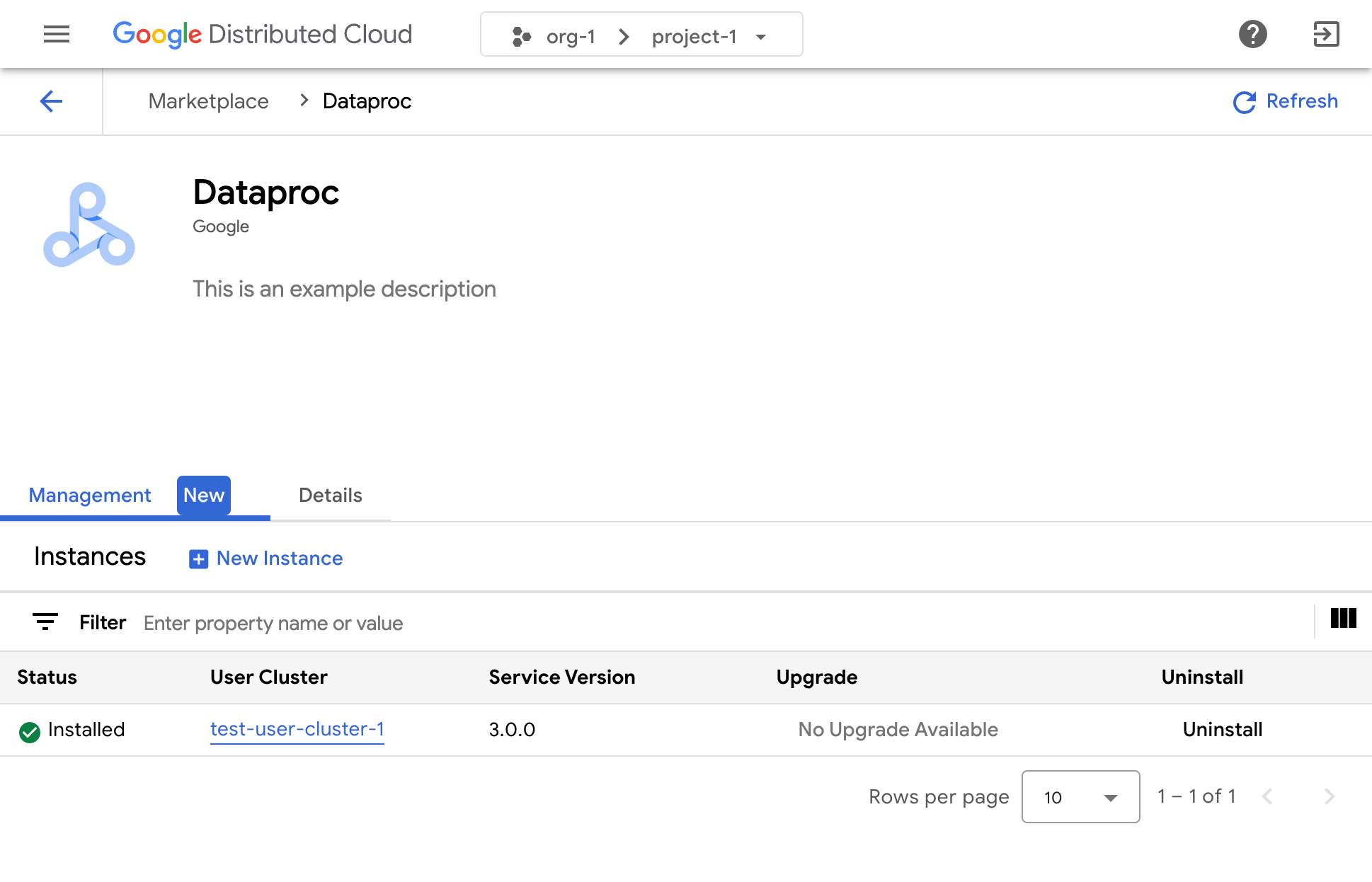
Consulta la documentazione del fornitore di software pertinente per scoprire come utilizzare la soluzione una volta installata.
Riconfigurare un'istanza di un pacchetto software del marketplace Distributed Cloud
Alcuni pacchetti software del marketplace Distributed Cloud possono essere riconfigurati quando sono già in esecuzione. Per i servizi basati su Kubernetes, questa operazione equivale ad applicare nuovi valori al grafico Helm del fornitore.
Per riconfigurare un'istanza in esecuzione di un pacchetto software del marketplace Distributed Cloud, segui questi passaggi:
Nel selettore di progetti della console GDC, seleziona il progetto in cui vuoi eseguire l'upgrade del pacchetto software.
Nella pagina del marketplace Distributed Cloud, visita la pagina della scheda del prodotto che vuoi aggiornare.
Fai clic sulla scheda Gestione.
Fai clic su File di configurazione per l'istanza che vuoi riconfigurare.
Nel riquadro visualizzato, inserisci i parametri personalizzati seguendo la documentazione del fornitore.
Fai clic su Salva per applicare i nuovi parametri. La riconfigurazione viene completata in pochi minuti.
Esegui l'upgrade di un pacchetto software del marketplace Distributed Cloud
Alcuni pacchetti software del marketplace Distributed Cloud possono essere aggiornati a una nuova versione tramite Google Distributed Cloud Marketplace dopo che l'operatore dell'infrastruttura ha reso disponibili le nuove versioni.
Per eseguire l'upgrade di un pacchetto software del marketplace Distributed Cloud, segui questi passaggi:
Nel selettore di progetti della console GDC, seleziona il progetto in cui vuoi eseguire l'upgrade del pacchetto software.
Nella pagina del marketplace Distributed Cloud, visita la pagina della scheda del prodotto che vuoi aggiornare.
Fai clic sulla scheda Gestione.
Fai clic su Esegui l'upgrade sull'istanza di cui vuoi eseguire l'upgrade.
L'upgrade viene completato in pochi minuti.
Disinstallare un pacchetto software Distributed Cloud Marketplace
Per disinstallare un pacchetto software del marketplace Distributed Cloud, completa i seguenti passaggi:
Nel selettore di progetti della console GDC, seleziona il progetto da cui vuoi disinstallare il pacchetto software.
Nella pagina del marketplace Distributed Cloud, visita la pagina della scheda del prodotto che vuoi disinstallare.
Fai clic sulla scheda Gestione.
Fai clic su Disinstalla per l'istanza che vuoi disinstallare.
Il pacchetto software viene disinstallato in pochi minuti.
[[["Facile da capire","easyToUnderstand","thumb-up"],["Il problema è stato risolto","solvedMyProblem","thumb-up"],["Altra","otherUp","thumb-up"]],[["Difficile da capire","hardToUnderstand","thumb-down"],["Informazioni o codice di esempio errati","incorrectInformationOrSampleCode","thumb-down"],["Mancano le informazioni o gli esempi di cui ho bisogno","missingTheInformationSamplesINeed","thumb-down"],["Problema di traduzione","translationIssue","thumb-down"],["Altra","otherDown","thumb-down"]],["Ultimo aggiornamento 2025-09-04 UTC."],[[["\u003cp\u003eThis page outlines how to manage Google Distributed Cloud (GDC) air-gapped Marketplace software packages through installation, upgrades, and uninstallation using the GDC console.\u003c/p\u003e\n"],["\u003cp\u003eYou can install a software package from the Distributed Cloud Marketplace by selecting a project, visiting the product's listing page, and following the prompts to configure and deploy it to a user cluster.\u003c/p\u003e\n"],["\u003cp\u003eExisting software packages can be reconfigured by accessing the product's listing page, clicking on "Configuration file" and changing the custom parameters, although the process is vendor-specific.\u003c/p\u003e\n"],["\u003cp\u003eUpgrades to software packages are triggered from the product's listing page in the Marketplace, but the upgrade process itself is vendor-specific and may require reviewing release notes.\u003c/p\u003e\n"],["\u003cp\u003eUninstalling a software package is done via the "Management" tab on the product's listing page, but users should be aware that it's a destructive action and data should be backed up beforehand.\u003c/p\u003e\n"]]],[],null,["# Life cycle of a marketplace deployment\n\nThis page explains how to install, upgrade, and uninstall Google Distributed Cloud (GDC) air-gapped Marketplace software packages using the GDC console.\n\nYou can also use the [`gdcloud marketplace` CLI](/distributed-cloud/hosted/docs/latest/gdch/resources/gdcloud-reference/gdcloud-marketplace) or the [Marketplace API](/distributed-cloud/hosted/docs/latest/gdch/apis/service/marketplace/marketplace-api-overview) to achieve the same results.\n\nBefore you begin\n----------------\n\nTo get the permissions you need to install, upgrade, and uninstall\nDistributed Cloud Marketplace software packages, ask your Security\nAdmin to grant you the Marketplace Editor (`marketplace-editor`) and Project Viewer (`project-viewer`) roles.\n\nInstall a Distributed Cloud marketplace software package\n--------------------------------------------------------\n\nYou discover, select, and install software packages from the\nDistributed Cloud Marketplace page of the GDC console.\n\nTo install a software package from the Distributed Cloud marketplace, complete the following steps:\n\n1. In the project selector of the GDC console, select the project you want to install the software package in.\n2. In the Distributed Cloud marketplace, visit the listing page for the product that you want to install. From this page, you can review details of the product and follow links to its documentation, pricing, and terms of services.\n3. If it's the first time you are installing this product, click **Install** . Otherwise, go to the Management tab and click **New Instance**.\n4. In the dialog, select which user cluster you want to install the software package in. If you want to customize its configuration, click **Next** . If you want to use the default configuration, click **Install**.\n5. If you clicked **Next** , you can now examine the default configuration. Click **Custom configuration** to enter your own parameters, following the vendor's documentation. When finished, click **Install** to proceed with the installation. For Kubernetes software packages, the parameters that you configure here override the default values provided by the vendor in their [Helm values file](https://helm.sh/docs/chart_template_guide/values_files/).\n6. Wait a few minutes for your new instance to be marked as *Ready* in the **Management** tab of the page.\n\n7. Consult the documentation of the relevant software vendor to learn how to use their solution once it's installed.\n\n| **Note:** If you need to know which container image is available in GDC, consult the list of [Marketplace images](/distributed-cloud/hosted/docs/latest/gdch/reference/mkt-images) that are included in your version of GDC. Images that were included in previous versions of GDC remain available for use, even after an upgrade of GDC.\n\nReconfigure an instance of a Distributed Cloud marketplace software package\n---------------------------------------------------------------------------\n\n| **Warning:** While you can reconfigure a running instance of a Distributed Cloud marketplace software package, the reconfiguration process is implemented by the vendor who published the product. The reconfiguration process therefore varies from one software package to another. We recommend you carefully review the documentation of the relevant vendor before proceeding with a reconfiguration. Depending on how the vendor implemented their reconfiguration process, you may encounter downtime in the service delivered.\n\nSome Distributed Cloud marketplace software packages can be reconfigured when they are already running. For Kubernetes-based services, this is equivalent to applying new [values](https://helm.sh/docs/chart_template_guide/values_files/) to the vendor's Helm chart.\n\nTo reconfigure a running instance of a Distributed Cloud marketplace software package, work through the following steps:\n\n1. In the project selector of the GDC console, select the project in which you want to upgrade the software package.\n2. On the Distributed Cloud marketplace page, visit the listing page for the product you want to upgrade.\n3. Click the **Management** tab.\n4. Click **Configuration file** for the instance you want to reconfigure.\n5. In the panel that opens, enter your custom parameters, following the vendor's documentation.\n6. Click **Save** to apply the new parameters. The reconfiguration completes in a few minutes.\n\nUpgrade a Distributed Cloud marketplace software package\n--------------------------------------------------------\n\n| **Warning:** While you can trigger the upgrade of a software package using the Distributed Cloud marketplace, the upgrade process is implemented by the vendor who published the product. The upgrade process therefore varies from one software package to another. We recommend you carefully review the release notes and upgrade documentation of the relevant vendor before proceeding with an upgrade. Depending on how the vendor implemented their upgrade process, you may encounter downtime in the service delivered, or compatibility issues between older and newer versions.\n\nSome Distributed Cloud marketplace software packages can be upgraded to a new version through the Google Distributed Cloud marketplace after your Infrastructure Operator makes those new versions available to you.\n\nTo upgrade a Distributed Cloud marketplace software package, work through the following steps:\n\n1. In the project selector of the GDC console, select the project in which you want to upgrade the software package.\n2. On the Distributed Cloud marketplace page, visit the listing page for the product you want to upgrade.\n3. Click the Management tab.\n4. Click **Upgrade** on the instance you want to upgrade. The upgrade completes in a few minutes.\n\n| **Note:** Upgrading a software package through the Distributed Cloud console leads to the next available version of the software being installed. If there are multiple new versions of the software available, you need to repeat the process for each of them. If required, use the [Marketplace API](/distributed-cloud/hosted/docs/latest/gdch/apis/service/marketplace/v1/marketplace-v1) to upgrade to a specific version.\n\nUninstall a Distributed Cloudmarketplace software package\n---------------------------------------------------------\n\n| **Warning:** Uninstalling a Distributed Cloud marketplace software package is a destructive action, and may result in loss of data or downtime of systems dependent on this software. Ensure that you have backed up all important data and that no important system depends on the software you want to uninstall before proceeding. Consult the documentation of the relevant vendor to learn how to back up any data managed by their software.\n\nTo uninstall a Distributed Cloud marketplace software package, complete the following steps:\n\n1. In the project selector of the GDC console, select the project you want to uninstall the software package from.\n2. On the Distributed Cloud marketplace page, visit the listing page for the product you want to uninstall.\n3. Click the **Management** tab.\n4. Click **Uninstall** for the instance you want to uninstall. The software package is uninstalled in a few minutes."]]