What is VDI (virtual desktop infrastructure)?
Last updated: 10/15/2026
Virtual desktop infrastructure, or VDI, is a technology that hosts desktop operating systems on a centralized server in a data center. It allows users to access their virtual desktops from almost any device, such as a laptop, tablet, or smartphone, over a network.
This setup is different from a traditional physical desktop deployment where the operating system and applications are installed directly on the hard drive of a specific computer. With VDI, the desktop environment is separated from the physical hardware, which means the "computer" you see on your screen is actually running on a powerful server miles away.
Fast migration assessment and getting started kit
Virtual desktop infrastructure (VDI) defined
Virtual desktop infrastructure (VDI) is a virtualization technology that hosts desktop operating systems and applications on centralized servers in a data center or cloud, streaming the desktop interface to end-user devices over a network.
Because all processing and data storage occur on the centralized host servers rather than the local endpoint device, VDI allows employees to securely access their full workspace from any laptop, thin client, or tablet while simplifying IT patching, backup, and security compliance.
Hypervisor
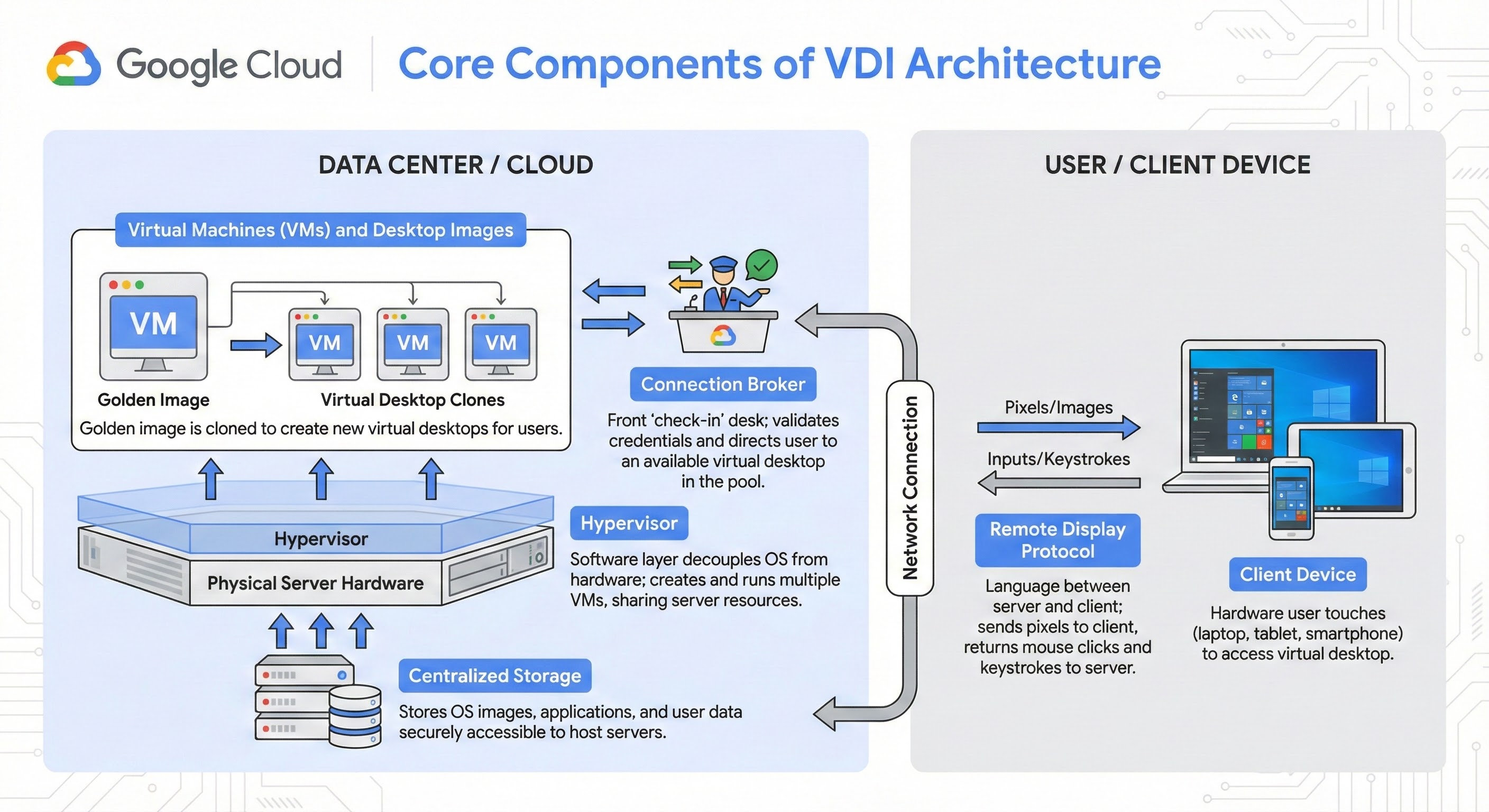
The hypervisor is the software layer that sits on top of the physical server hardware. It decouples the operating system from the hardware. It can allow you to create and run multiple virtual machines (VMs) on a single physical server by sharing the server's memory and processing power.
Virtual machines (VMs) and desktop images
The virtual machine is the software-based computer that the user actually interacts with. In a VDI environment, IT teams create a "golden image" or main desktop. They use this main copy to quickly create (clone) new virtual desktops for users.
Connection broker
You can think of the connection broker as the front ‘check-in’ desk of the VDI infrastructure. When a user logs in, the connection broker checks their credentials. It then finds an available virtual desktop in the pool and directs the user to it.
Centralized storage
Since the desktops don't live on the user's device, all the data needs to live somewhere else. VDI uses centralized storage systems to keep operating system images, applications, and user data safe and accessible to the host servers. This ensures that even if a local device fails, the data remains secure in the data center.
Client device and remote display protocol
The client device is the hardware the user touches, such as a laptop. The remote display protocol is the language the server and client use to talk to each other. It sends the screen images (pixels) from the server to the client and sends the user's mouse clicks and keystrokes back to the server.
Types of VDI
When companies decide to deploy VDI, they usually choose between two main models: persistent and non-persistent.
Persistent VDI
In a persistent VDI setup, each user gets their own dedicated virtual desktop. It works similarly to a personal physical PC because users can save their settings, install their own apps, and customize the background, and it will all be there the next time they log in. This is often the best choice for developers or power users who need a specific configuration to do their jobs.
Non-persistent VDI
In a non-persistent VDI environment, the desktops are generic. When a user logs in, they get a fresh desktop from a pool of identical clones. When they log out, the desktop reverts to its original state, and any changes they made are wiped away. This is usually less expensive and easier for IT to manage because they only have to maintain one source image.
VDI versus remote desktop services (RDS) versus DaaS
While VDI, remote desktop services (RDS), and desktop as a service (DaaS) all help users work remotely, they function differently. VDI gives a user a dedicated virtual machine running a client operating system, like Chrome OS, macOS, or Windows. RDS, sometimes called remote desktop session host (RDSH), allows multiple users to share a single session on a server operating system, like Windows server. DaaS is simply VDI that is outsourced to a cloud provider.
Feature | VDI | RDS | DaaS |
Operating system | Client OS (e.g., Chrome OS) | Server OS (e.g., Windows server) | Client or server OS |
User experience | Isolated, personal desktop | Shared server resources | Isolated or shared |
Management | Managed by internal IT | Managed by internal IT | Managed by cloud provider |
Infrastructure | On-premises or private cloud | On-premises or private cloud | Public cloud (subscription) |
Best practices for a secure VDI environment
While VDI is inherently secure, it requires proper governance and monitoring to stay that way.
Governance and resource control
- Define user groups and resource allocation: You should group users by department or need (like "Developers" versus "HR") to ensure power users get the compute resources they need without slowing down others.
- Implement multi-factor authentication (MFA): Since VDI can be accessed from anywhere, adding a second layer of verification helps ensure that only the right people are logging in.
- Enforce strict data retention and destruction policies: Automate the process of wiping non-persistent desktops and archiving data from persistent ones to keep storage costs down and hygiene up.
Monitoring and maintenance
- Monitor session latency and connection quality: Slow connections frustrate users, so IT teams should track network performance to identify bottlenecks before they stop work.
- Regularly patch and update "golden images": Instead of patching individual computers, update the main image frequently so that every new desktop created is secure by default.
- Leverage enterprise visibility and logging platforms: Use tools that track who is logging in and what applications they are using to detect suspicious behavior early.
Common VDI use cases
VDI can be versatile and fits well in industries that require strict security or have a shifting workforce.
- Supporting remote and hybrid teams: Companies use VDI to give employees a consistent, secure "office" experience regardless of where they are physically working.
- Bring Your Own Device (BYOD) programs: VDI allows staff to use their personal Mac, PC, or tablet to access corporate apps securely without mixing personal and business data.
- High-security and regulatory compliance environments: Hospitals and banks use VDI to ensure sensitive patient or customer data never leaves the secure data center, which helps with HIPAA and PCI compliance.
- Temporary, contract, or seasonal workforces: Organizations can quickly spin up desktops for contractors and then delete them when the contract ends, saving time on onboarding and offboarding.
- Business continuity and disaster recovery (DR): In the event of an outage, VDI keeps the business running by allowing users to switch devices and continue working without data loss.
The Google Cloud advantage for VDI
Even without a proprietary first-party VDI product, Google Cloud offers a distinct infrastructure advantage for organizations running virtual desktops.
- Global low-latency network: User experience in VDI depends heavily on network speed. Google Cloud’s global fiber network delivers low latency, ensuring that virtual desktops feel responsive to users, whether they are in the same city or across the globe.
- Zero Trust security model: With tools like Identity-Aware Proxy (IAP) and BeyondCorp Enterprise, you can grant secure access to virtual desktops without relying on traditional VPNs. This allows you to verify user identity and context before granting access to the VDI environment.
- Optimized endpoints with ChromeOS: ChromeOS devices and Chromebooks are popular endpoints for VDI because they are secure by design, easy to manage, and cost-effective. They pair seamlessly with VDI solutions running on Google Cloud to provide a modern, cloud-native work experience.
- Graphics and performance acceleration: For graphics-intensive workloads like video editing or engineering, Google Cloud offers a wide range of NVIDIA GPUs. You can attach these to your virtual workstations to deliver high-performance rendering that rivals physical workstations.
Benefits of using virtual desktop infrastructure
Adopting VDI infrastructure can solve many problems for modern enterprises, especially those with distributed teams.
Enhanced security and data centralization
Enhanced security and data centralization
Because data lives on the server rather than the end-user's device, a lost or stolen laptop does not mean a data breach.
Increased mobility and flexibility for users
Increased mobility and flexibility for users
"VDI virtual desktop" technology allows employees to access their work environment from home, a coffee shop, or while traveling, using almost any device.
Simplified management and centralized control for IT
Simplified management and centralized control for IT
IT teams can patch, update, and troubleshoot thousands of desktops from a single console without physically touching the devices.
Reduced hardware costs and extended life of endpoint devices
Reduced hardware costs and extended life of endpoint devices
Since the heavy processing happens on the server, companies can use older PCs or inexpensive "thin clients" for longer periods.
Improved disaster recovery and business continuity
Improved disaster recovery and business continuity
If a natural disaster affects a physical office, employees can log in from a safe location and access their data immediately because it is backed up in the data center.
VDI solutions with Google Cloud
What is virtual desktop infrastructure in cloud computing? It is the same VDI concept, but it runs on Google Cloud's global infrastructure. This offers scalability and security that is hard to match with on-premises servers.
 Compute EngineYou can build your own VDI solution directly on Compute Engine. This gives you granular control over the virtual machines, storage types, and network configurations to fit specific technical needs.
 Google Cloud VMware EngineThis service supports VDI platforms like VMware Horizon, allowing you to migrate existing on-premises VDI environments to Google Cloud without refactoring applications. It provides a native VMware experience with the scalability of Google Cloud infrastructure.
 Google Cloud MonitoringGoogle Cloud Monitoring can give you visibility into the performance, uptime, and overall health of your VDI applications and infrastructure. It collects metrics and metadata so you can track session latency and server load in real time.
 Google Cloud LoggingGoogle Cloud Logging can allow you to store, search, analyze, and alert on log data. It helps IT teams audit access, troubleshoot errors, and maintain security by keeping a record of who accessed what and when.
Solution
Virtual DesktopsGoogle Cloud Virtual Desktops can allow you to deliver secure, high-performance experiences to users globally. You can scale up hundreds of desktops in minutes to meet sudden demand.
Additional resources
- Compute Engine documentation: Read the technical guides for creating and managing the virtual machines that power VDI.
- Cloud Identity and Access Management: Learn how to manage user access and security policies for your virtual environment.
Take the next step
Start building on Google Cloud with $300 in free credits and 20+ always free products.
Need help getting started?
Contact salesWork with a trusted partner
Find a partnerContinue browsing
See all products