What is vibe coding?
Last Updated: 3/20/2026
Vibe coding is a software development practice making app building more accessible, especially for those with limited programming experience. It marks the end of an era where software development required years of technical training, turning millions of non-coders into creators who can build and launch applications in seconds.
The term, coined by AI researcher Andrej Karpathy in early 2025, describes a workflow where the primary role shifts from writing code line-by-line to guiding an AI assistant to generate, refine, and debug an application through a more conversational process. This frees you up to think about the big picture, or the main goal of your app, while the AI handles writing the actual code.
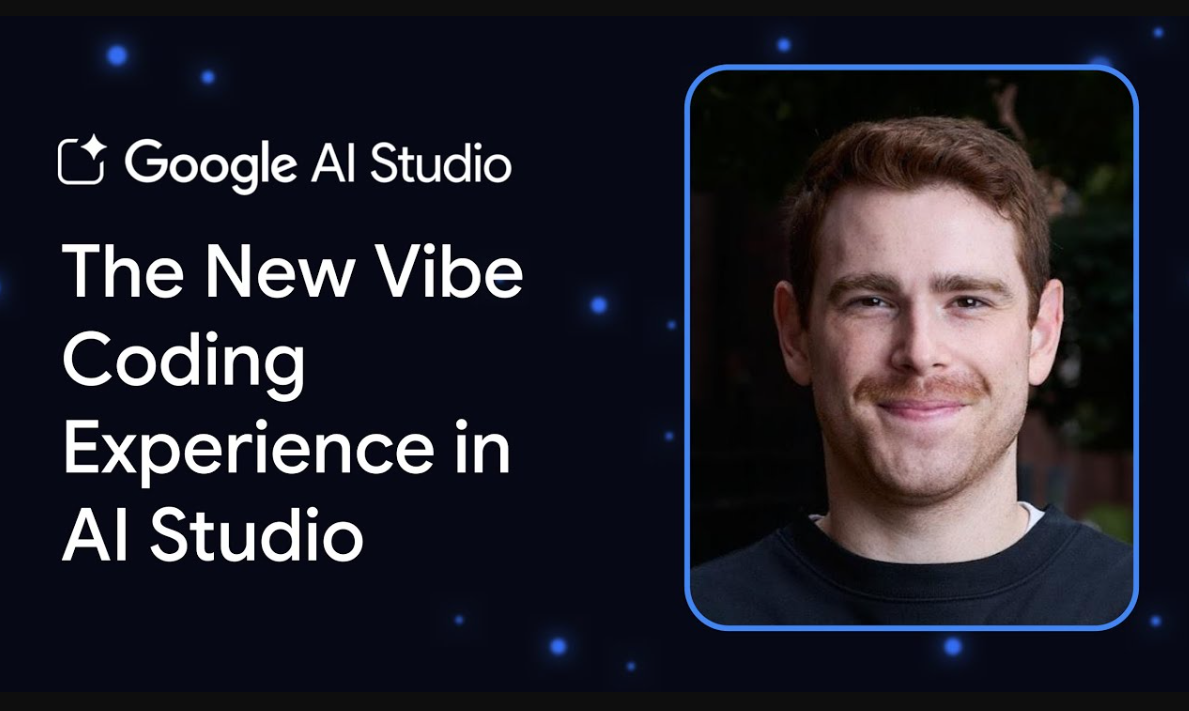
In practice, vibe coding is generally applied in two main ways:
"Pure" vibe coding: In its most exploratory form, a user might fully trust the AI's output to work as intended. As Karpathy framed it, this is akin to "forgetting that the code even exists," making it best suited for rapid ideation or what he called "throwaway weekend projects," where speed is the primary goal.
Responsible AI-assisted development: This is the practical and professional application of the concept. In this model, AI tools act as a powerful collaborator or "pair programmer." The user guides the AI but then reviews, tests, and understands the code it generates, taking full ownership of the final product.
Understanding how the vibe coding process works
The code-level workflow
This is the tight, conversational loop you use to create and perfect a specific piece of code.
|
- Describe the goal: You start with a high-level prompt in plain language. For example: "Create a Python function that reads a CSV file."
- AI generates code: The AI assistant interprets your request and produces the initial code.
- Execute and observe: You run the generated code to see if it works as intended.
- Provide feedback and refine: If the output isn’t quite right or an error occurs, you provide new instructions, like, "That works, but add error handling for when the file is not found."
- Repeat: This loop of describing, generating, testing, and refining continues until the code is complete.
Define “vibe deploying”
Vibe coding doesn't stop at code generation. Vibe deploying is the ability to launch your application to a live, production-grade environment (like Cloud Run) with a single click or prompt. This removes the "DevOps bottleneck," allowing you to test your ideas with real users immediately.
Vibe coding operates on two levels: the low-level iterative loop of refining code, and the high-level lifecycle of building and deploying a full application.
The application lifecycle
This is the broader process of taking a high-level idea from concept to a deployed application.
|
- Ideation: You describe the entire application you want in a single, high-level prompt in tools like Google AI Studio or Firebase Studio
- Generation: The AI generates the initial version of the full application, including the UI, backend logic, and file structure
- Iterative refinement: You test the application and use follow-up prompts to add new features or change existing ones
- Testing and validation: A human expert reviews the application for security, quality, and correctness
- Deployment: With a final prompt or a single click, you deploy the application to a scalable platform like Cloud Run
Vibe coding versus traditional programming
With traditional programming, you focus on the details of implementation, manually writing the specific commands, keywords, and punctuation a language requires. Vibe coding lets you focus on the desired outcome instead, describing your goal in plain language, like "create a user login form," while the AI handles the actual code.
Here’s a comparison:
Feature | Traditional programming | Vibe coding |
Code Creation | Manual coding line by line | AI-generated from natural language prompts |
Developer or user role | Architect, implementer, debugger | Prompter, guide, tester, refiner |
Coding expertise required | Higher (knowledge of programming languages and syntax) | Lower (understanding of the desired functionality) |
Primary input | Precise code | Natural language prompts and feedback |
Development speed | Generally slower, methodical | Potentially faster, particularly for prototyping simpler tasks |
Error handling | Manual debugging based on code comprehension | Refinement through conversational feedback |
Learning curve | Often steep | Potentially lower barrier to entry |
Code maintainability | Relies on code quality, developer skill, and established practices | Can depend heavily on AI output quality and user review |
Feature
Traditional programming
Vibe coding
Code Creation
Manual coding line by line
AI-generated from natural language prompts
Developer or user role
Architect, implementer, debugger
Prompter, guide, tester, refiner
Coding expertise required
Higher (knowledge of programming languages and syntax)
Lower (understanding of the desired functionality)
Primary input
Precise code
Natural language prompts and feedback
Development speed
Generally slower, methodical
Potentially faster, particularly for prototyping simpler tasks
Error handling
Manual debugging based on code comprehension
Refinement through conversational feedback
Learning curve
Often steep
Potentially lower barrier to entry
Code maintainability
Relies on code quality, developer skill, and established practices
Can depend heavily on AI output quality and user review
Getting started: Choosing your vibe coding tool
Google Cloud offers several tools for vibe coding. Choosing which tool you use should depend on your goal, and not necessarily your job title. A developer might use AI Studio for a quick prototype, an enthusiast might build a full application in Firebase Studio, and a data scientist might use Gemini CLI to write a script.
After you finish prototyping, your deployment path depends on the tool you select. You can continue to iterate by editing the source code directly or by returning to your vibe coding environment to provide more instructions.
Use this guide to find the best tool for the task at hand.
Tool | Starting point | Skill level | Coding approach | Key feature |
An idea you want to see, fast | Beginner. No coding experience needed | No-Code / Low-Code | Single-prompt app generation with zero-friction deployment | |
Terminal based development | Intermediate to advanced | Low-Code/AI-assisted | Open-source agent for terminal-first "vibe" workflows | |
A complex engineering task or mission | Beginner to advanced | Agent-first / Autonomous | Mission Control for orchestrating autonomous agents across the editor, terminal, and browser | |
Building custom, autonomous agents from scratch | Advanced / Expert | Code-first / Agentic | Open-source Python/Java framework for building and evaluating production-ready multi-agent systems |
Tool
Starting point
Skill level
Coding approach
Key feature
An idea you want to see, fast
Beginner. No coding experience needed
No-Code / Low-Code
Single-prompt app generation with zero-friction deployment
Terminal based development
Intermediate to advanced
Low-Code/AI-assisted
Open-source agent for terminal-first "vibe" workflows
A complex engineering task or mission
Beginner to advanced
Agent-first / Autonomous
Mission Control for orchestrating autonomous agents across the editor, terminal, and browser
Building custom, autonomous agents from scratch
Advanced / Expert
Code-first / Agentic
Open-source Python/Java framework for building and evaluating production-ready multi-agent systems
How to vibe code with Google AI Studio
AI Studio is the quickest way to go from an idea to a live, shareable web app, often with a single prompt. It's perfect for rapid prototyping and building simple, generative AI applications.
Step 1: Describe what you want to build in your prompt
To get started, go to Build in AI Studio. In the main prompt area, simply describe the application you want to create. Start with a fun, creative idea, and then simply run the prompt. Once you run the prompt, you’ll see AI Studio generate the necessary code and files, with a live preview of your app appearing on the right-hand side.
Example prompt: "Create a 'startup name generator' app. It needs a text box where I can enter an industry, and a button. When I click the button, it shows a list of 10 creative names." |
Example prompt: "Create a 'startup name generator' app. It needs a text box where I can enter an industry, and a button. When I click the button, it shows a list of 10 creative names."
Step 2: Refine the app
Now that you have a live preview, you can use the chat interface to refine its look and functionality with follow-up prompts. You could add features, change visual elements, and more.
Example prompt: "Make the background a dark gray and use a bright green for the title and button to give it a 'techy' feel." |
Example prompt: "Make the background a dark gray and use a bright green for the title and button to give it a 'techy' feel."
Step 3: Deploy to Cloud Run to share
Once you’re happy with the result, you can deploy to Cloud Run.
Key features:
- Zero-friction access: You can launch your first applications quickly
- Scalable infrastructure: It uses Cloud Run on the backend, ensuring your app can scale to handle traffic if it goes viral
How to vibe code with Gemini CLI
Gemini CLI is an open-source AI agent that brings Gemini directly into your terminal. It’s designed for developers who want a terminal-first vibe coding experience.
Step 1: Initialize your project
After installing the agent in your terminal, you can launch Gemini CLI in any directory by typing gemini. It can automatically analyze your local files to understand the project context.
Expert tip: Create a GEMINI.md file in your project root. This file acts as "long-term memory," providing specific instructions, coding standards, and project goals that the AI follows at all times. |
Expert tip: Create a GEMINI.md file in your project root. This file acts as "long-term memory," providing specific instructions, coding standards, and project goals that the AI follows at all times.
Step 2: Use model context protocol (MCP) servers and extensions
Gemini CLI supports the model context protocol (MCP), which allows the AI to connect to external tools and data sources.
- You can connect Gemini to a database, a GitHub repository, or Google Search
- By pointing Gemini CLI to an MCP server, you give it "new skills," such as the ability to read your Jira tickets or deploy code to a specific server
- Gemini CLI has an ecosystem of extensions from popular service providers and Google services which package MCP servers with context for how it should be used by Gemini to carry out tasks on your behalf
Step 3: Iterate in "shell mode"
You can toggle "shell mode" within Gemini CLI to run terminal commands directly. This allows you to ask the AI to "Fix the error in my last build," and the AI can execute the fix and re-run the build command for you.
How to vibe code with Google Antigravity
Vibe coding with Google Antigravity shifts the focus from writing syntax to directing a mission. Instead of micro-managing lines of code, you guide autonomous agents that handle the heavy lifting across your editor, terminal, and browser.
Step 1: Initialize your mission control
Launch the Antigravity application. Note that for enterprise users, Antigravity is supported via the Google AI Ultra for Business add-on, granting higher usage limits and prioritized traffic for mission-critical tasks. You can choose to import existing settings from VS Code or start fresh to explore the agent-native interface.
In the Agent Manager, you'll select your primary model, such as Gemini 3 Pro, and configure your Review Policy.
For a true "vibe" experience, many developers set terminal execution to auto, which allows the agent to run routine commands like npm install or git status without stopping to ask for permission every time.
Step 2: Define the high-level objective
In the Agent Panel, describe what you want to build using natural language. For example, you might say, "Build a responsive personal finance dashboard using Next.js and Tailwind CSS."
Antigravity doesn't just start typing; it begins by analyzing your request and proposing a task checklist. This checklist outlines the entire project lifecycle, from scaffolding the file structure to final UI polish.
Step 3: Review the implementation plan
Before any code is committed, the agent generates an Implementation Plan (usually as an implementation_plan.md artifact). This document serves as a technical blueprint, detailing exactly which files will be created or modified and what logic will be used.
You can review this plan, leave comments or "vibes" on specific sections, like asking for a different color palette or a specific state management library, and the agent will adjust its strategy before proceeding.
Step 4: Monitor autonomous execution
Once you approve the plan, the agent moves into the execution phase.
You can watch as it opens the terminal to install dependencies, creates component files in the editor, and fixes its own linting errors in real-time. If you hit a roadblock or want to pivot, you can switch between Planning Mode (for complex architecture) and Fast Mode (for quick edits) to keep the momentum going.
Step 5: Verify with artifacts and browser agents
Antigravity moves beyond text-based logs by providing visual proof of its work. If your project includes a frontend, the agent can launch a Browser Sub-Agent to test the UI. It will capture screenshots and browser recordings of itself clicking buttons and navigating pages to ensure everything works as intended. You can verify the "vibe" of the final product by reviewing these artifacts directly in your mission control dashboard.
Step 6: Extend capabilities with Agent Skills
As your project grows, you can teach your agents new tricks using Agent Skills. By adding a SKILL.md file to your project's .agent/skills/ directory, you can define specific workflows or coding standards unique to your team. For instance, you could create a "database migration" skill that teaches the agent how to safely update your schema using your company’s specific CLI tools.
Advanced vibe coding: Using Agent Development Kit (ADK)
For complex projects, you can use the Agent Development Kit (ADK) with Gemini CLI to build "autonomous agents." These agents can perform multi-step tasks like:
- Writing a full suite of unit tests
- Refactoring a legacy codebase
- Building a CI/CD pipeline to automate testing and deployment
Build from idea to application, faster
Vibe coding is more than just a new technique. It’s helping shift how we create software. It lowers the barrier to entry for new creators and acts as a powerful force multiplier for experienced developers, allowing everyone to focus more on creative problem-solving and less on manual implementation.
Related Google Cloud products and services
 Google AI StudioA web-based tool that lets you experiment with generative AI models and develop prompts for a variety of creative uses
 Gemini Enterprise Agent PlatformUnified ML platform to easily build, deploy, and manage AI models. Experiment rapidly with AutoML, pre-trained APIs, and generative AI tools.
 Cloud RunServerless platform to deploy containerized apps instantly. Auto-scales (even to zero) for fast iteration of web apps and APIs with low overhead.
Take the next step
Start building on Google Cloud with $300 in free credits and 20+ always free products.
Need help getting started?
Contact salesWork with a trusted partner
Find a partnerContinue browsing
See all products