
This page describes how to configure the assistant's behavior, including setting additional LLM instructions, enabling Model Armor, and defining banned phrases.
In the Google Cloud console, go to the Gemini Enterprise page.
Click the name of the app that you want to configure.
Click Configurations.
In the Additional LLM system instructions section, select Customize.
Enter the additional LLM system instructions.
For example:
Make the summary headings bold
List the resources as an unordered list
In the Enable Model Armor section, follow the instructions to configure Model Armor and setup the Model Armor templates. For more information, see the Configure Model Armor page.
In the Banned phrases section, click Add banned phrase to add a new phrase.
In the dialog, enter the banned phrase and choose the match type.
Simple string match: This is a substring match. For example, if Hello is a banned phrase, both Hello world and Helloworld are rejected.
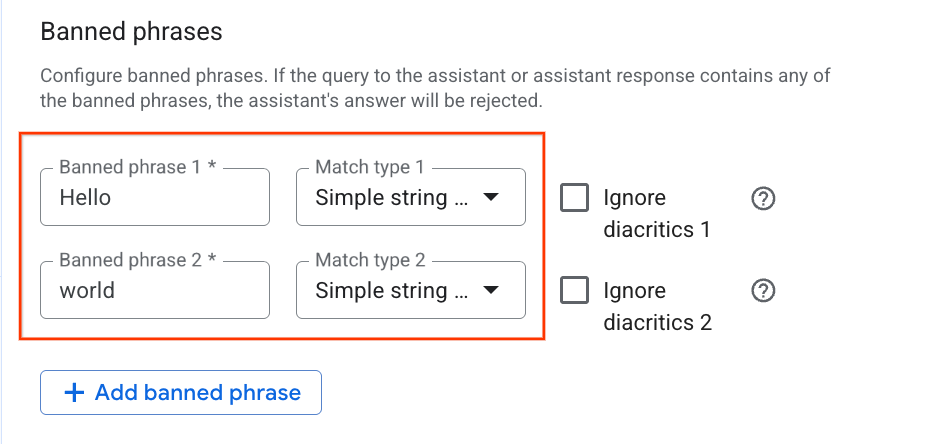
Enter the banned phrase and choose the Single string match type Word boundary string match: This blocks the phrase as a whole word. For example, if Hello is a banned phrase, Hello world is rejected, but Helloworld is accepted.
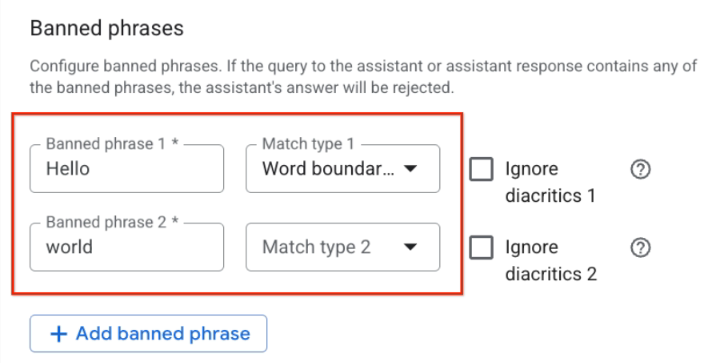
Enter the banned phrase and choose the Word boundary string match type
After entering the phrase and selecting the match type, click Save and publish.