Using the Neo4j Extension in Gemini CLI
Jack Wotherspoon
Developer Advocate
Ben Lackey
Senior Director at Neo4j
Gemini CLI integrates Gemini’s reasoning capabilities directly into your terminal. As graph databases like Neo4j become foundational AI infrastructure—turning raw data into actionable knowledge—their convergence with Gemini CLI offers a powerful new solution. By leveraging the Model Context Protocol (MCP), the Neo4j Gemini CLI extension bridges Gemini’s reasoning engine with the structured "memory" of a knowledge graph. This allows developers to deploy cloud infrastructure, generate Cypher queries using natural language, and build sophisticated GraphRAG applications without ever leaving the terminal.
Why use Neo4j on Google Cloud?
Neo4j represents information as nodes and the relationships between them. This network or graph representation is useful for getting value from the connections in data. It has applications across verticals in customer and product 360, logistics and optimization, fraud detection and pharmaceutical drug discovery. Some production use cases include:
- Dun and Bradstreet uses Neo4j on Google Cloud to maintain ownership information between different companies.
- Uber stores configuration management information in Neo4j on Google Cloud.
Neo4j Gemini CLI extension
Neo4j’s Gemini CLI extension is part of the growing Gemini CLI extensions ecosystem. The Neo4j Gemini CLI Extension packages four Neo4j MCP servers within Gemini CLI. These let users deploy Neo4j Aura, write Cypher queries from natural language, visualize graphs and use knowledge graphs as memory in larger agentic flows. This makes it easier than ever before to build knowledge graphs and GraphRAG applications.
The four MCP servers bundled within the Gemini CLI extension are:
-
mcp-neo4j-cloud-aura-api - Neo4j Aura cloud service management API
-
mcp-neo4j-cypher - Natural language to Cypher queries
-
mcp-neo4j-data-modeling - Interactive graph data modeling and visualization
-
mcp-neo4j-memory - Knowledge graph memory stored in Neo4j
Let’s get started showing how this works!
I: Subscribe to Neo4j Aura in Google Cloud Marketplace
Before you can use the Neo4j MCP servers, you’ll need a Neo4j Aura subscription and an API key.
-
Log in to Google Cloud Marketplace and subscribe to Neo4j Aura.
-
Once subscribed, go to the Neo4j Aura Console - select the Marketplace Organization, choose the tenant, and store the tenant ID (you’ll need this for a later step).
-
In the Aura Console, click your profile icon in the top-right corner, select Account Settings, and then go to API keys. From there, click Generate API key. Copy the generated NEO4J_AURA_CLIENT_ID and NEO4J_AURA_CLIENT_SECRET. These will be used by the mcp-neo4j-cloud-aura-api server.
A video showing how to deploy through Marketplace is also available here.
II. Configure Environment Variables
If you like, you can follow the instructions here. If you’re a more visual learner, there’s a video here as well.
First, set the environment variables in your shell. This ensures that your MCP servers can connect to Neo4j Aura and authenticate against the Aura API.

III. Install the Neo4j Gemini CLI Extension
Install the extension with the command:
Start Gemini CLI with the gemini command:
Run /mcp desc to confirm the Neo4j MCP servers are Ready. You should see a green indicator, for example:
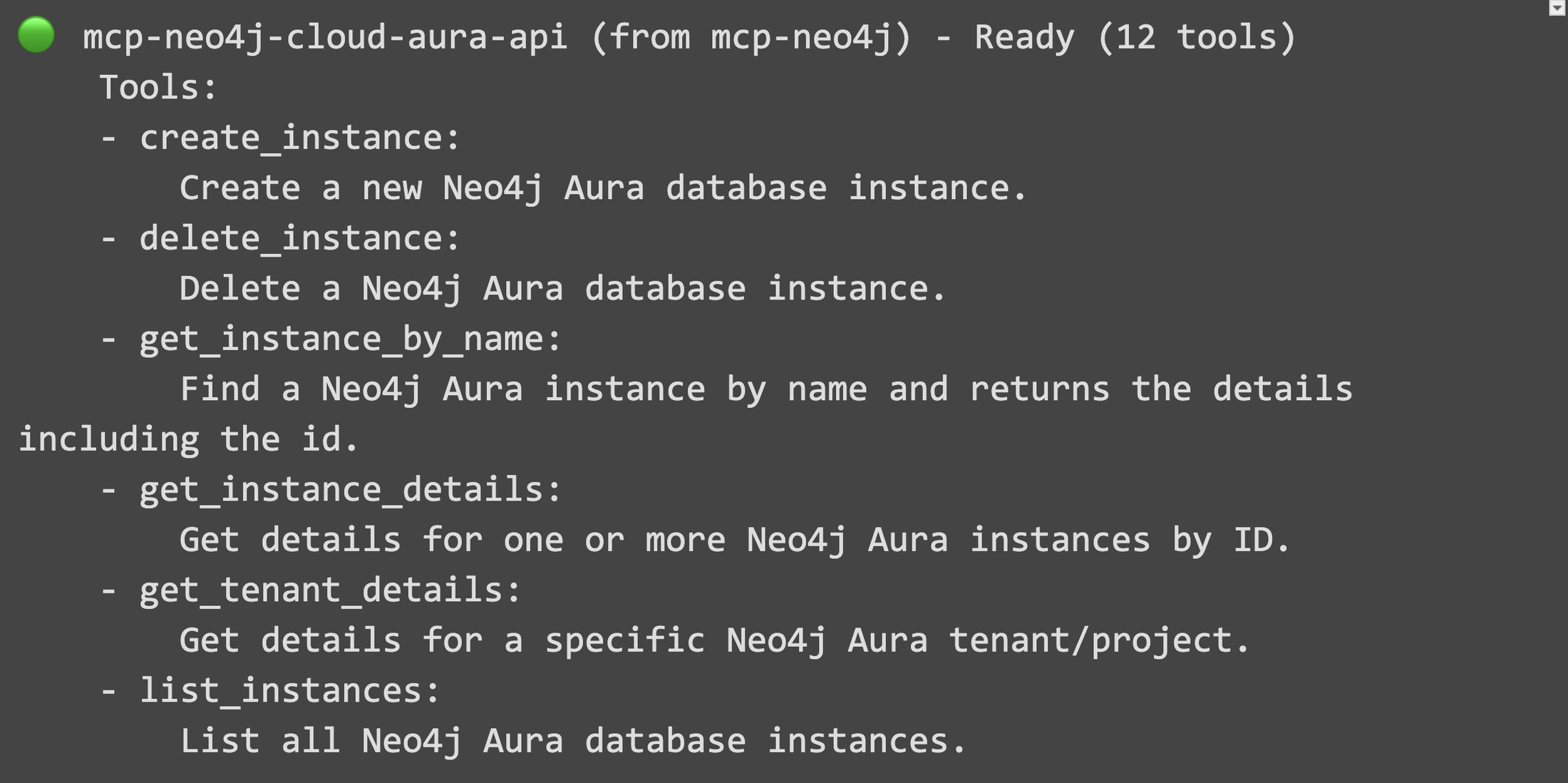
Some of the Neo4j MCP servers may show red because they don’t yet have a database to connect to.
Using the Management Server mcp-neo4j-cloud-aura-api
Now let’s try using one of the MCP servers. The Aura Database Manager MCP Server allows us to deploy a new database. To do so, we can simply type a prompt with Gemini CLI.
Prompt to create an AuraDB Pro instance:
Gemini may then ask a few follow up questions. For instance, my account has many Aura tenants, so it asked which tenant I wanted to use and what the name of my instance should be.
Once it has sufficient context, Gemini will then provision the instance and return details including the instance ID, URL, and database password.
The output will be something like this.
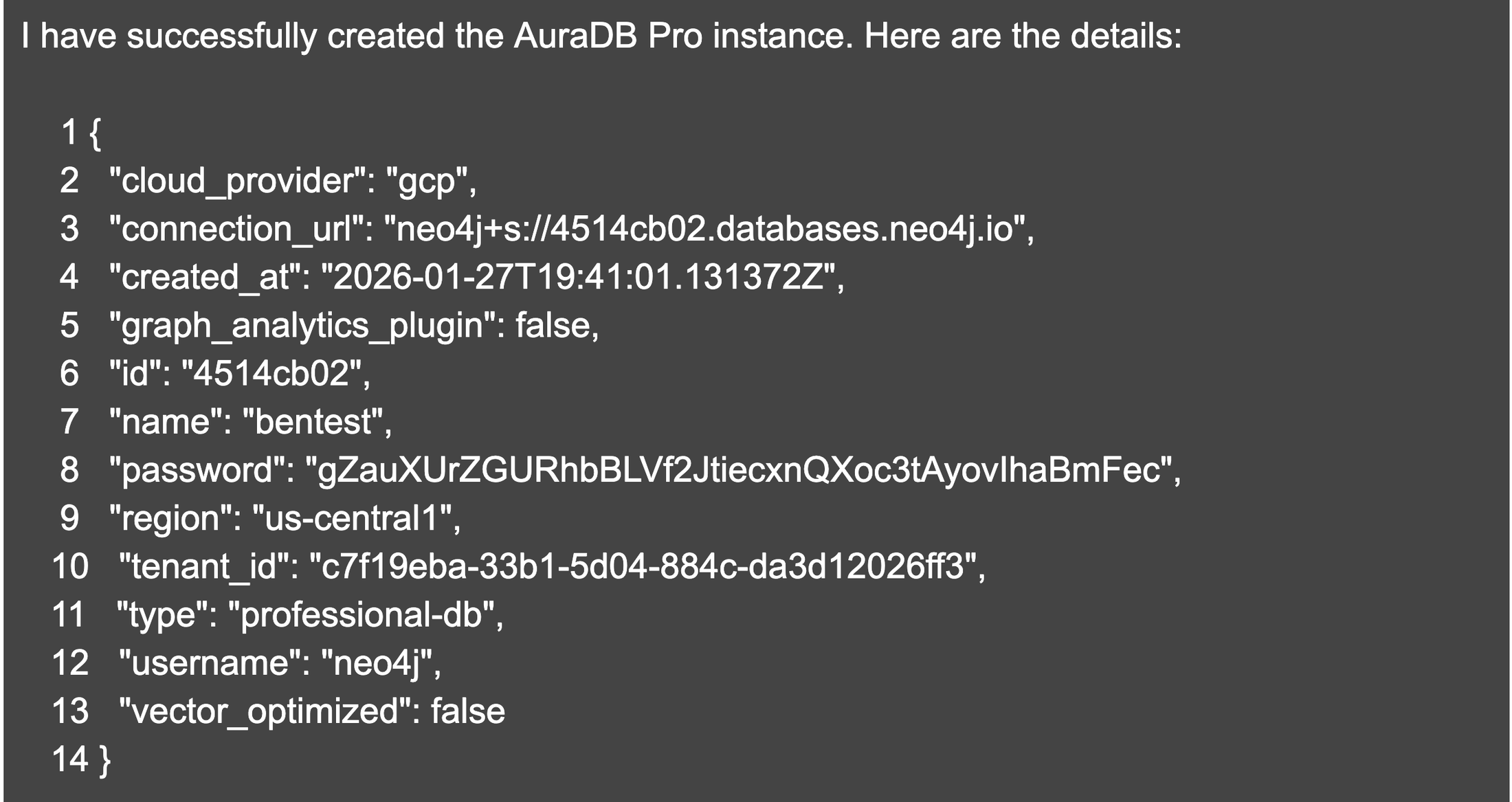
Copy these values somewhere you can refer back to them. You will need them to set up environment variables.
Exit Gemini CLI briefly and set them as environment variables:

Once the environment variables are set, open Gemini CLI again.
If you run /mcp desc again, the Neo4j MCP servers should now all show green. That’s because we set all the environment variables and they have a database to connect with.
We can explore the other servers by running some commands.
Using the Cypher Server mcp-neo4j-cypher
Neo4j is used to store graphs. Graphs are made up of nodes and the relationships between them. As a very simple example, let’s create a node.
Now let’s query the database.
Now let’s take a look at how the prompts we’ve run have made changes in the Aura Console. Open the Neo4j Aura Console and navigate to your instance.
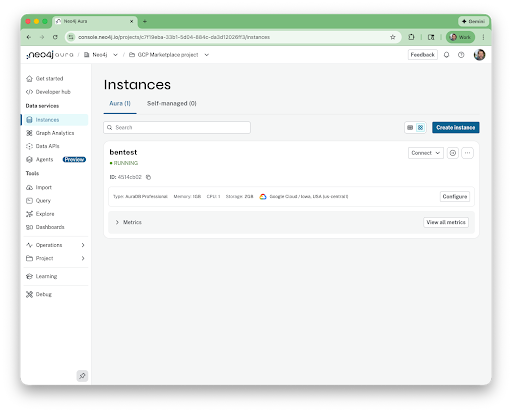
A view of the instance we deployed using Gemini, now shown in the Aura Console.
Then click Connect and Query. Use your password from earlier. You can then view the node we created earlier using Gemini and MCP.
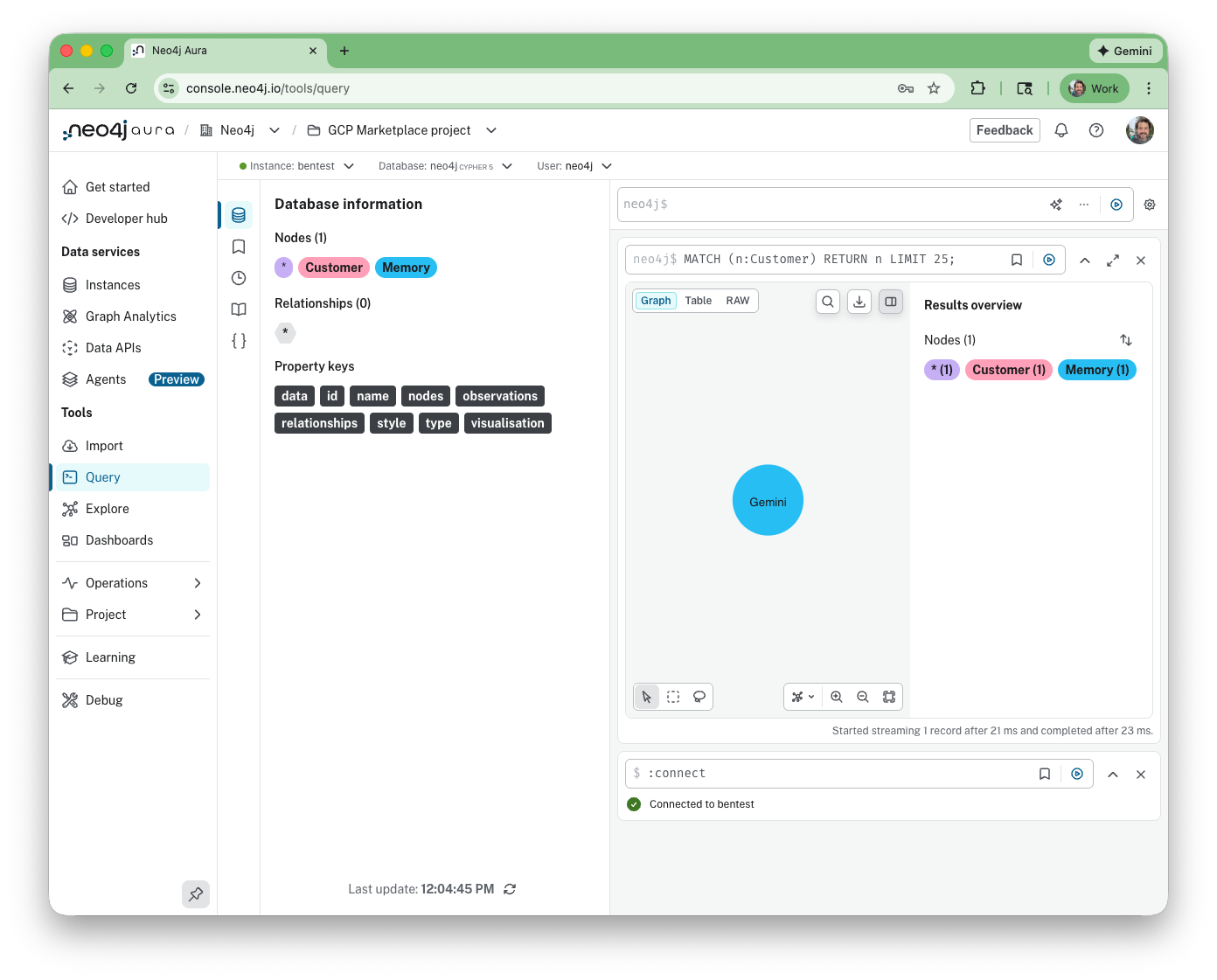
The node we created using Gemini, now shown in the Aura console.
So, entirely using MCP and Gemini CLI, we were able to create a brand new AuraDB Pro instance. We then made a node that is stored within that database instance. It’s pretty neat that it could all be done automatically using natural language.
Using the Data Modeling Server mcp-neo4j-data-modeling
Now let’s explore another MCP server.
The data modeling MCP server helps you explore and understand the structure of your graph. It provides quick insights into what labels, relationships, and counts exist in your database. This makes it easier to design, refine, and visualize your graph model.
Prompt in Gemini CLI:
Unless you’ve explored further, there’s probably a single node in the database with a single label.
Using the Memory MCP Server mcp-neo4j-memory
We’ve got one more MCP server we can look at.
The memory MCP server is to act as a long-term knowledge store, persisting facts and context inside Neo4j. This allows agentic flows and Gemini sessions to recall previously stored information, update it, or forget it, enabling richer and more contextual interactions.
Prompt to store in memory:
Prompt to retrieve from the memory:
This is, of course, a simplistic example. Knowledge graphs like this can be used to store complex relationships in a way that is easily retrievable by AI. This grounds it with knowledge available in your enterprise.
Clean Up
When you’re done, you can delete the AuraDB Pro instance using the same MCP server we used at the start of this walkthrough.
Prompt to destroy the Aura instance:
If you like, you can look in the Aura Console to verify the delete took place.
Conclusion
The Neo4j extension makes it easier than ever to get started representing your data as a graph. This lets you unlock the value of connections in your data.
You can learn more about how Google and Neo4j work together at https://neo4j.com/google. To check out the full list of Gemini CLI extensions available head to geminicli.com/extensions.
We’re excited to see what you build!